# 3D Scanning
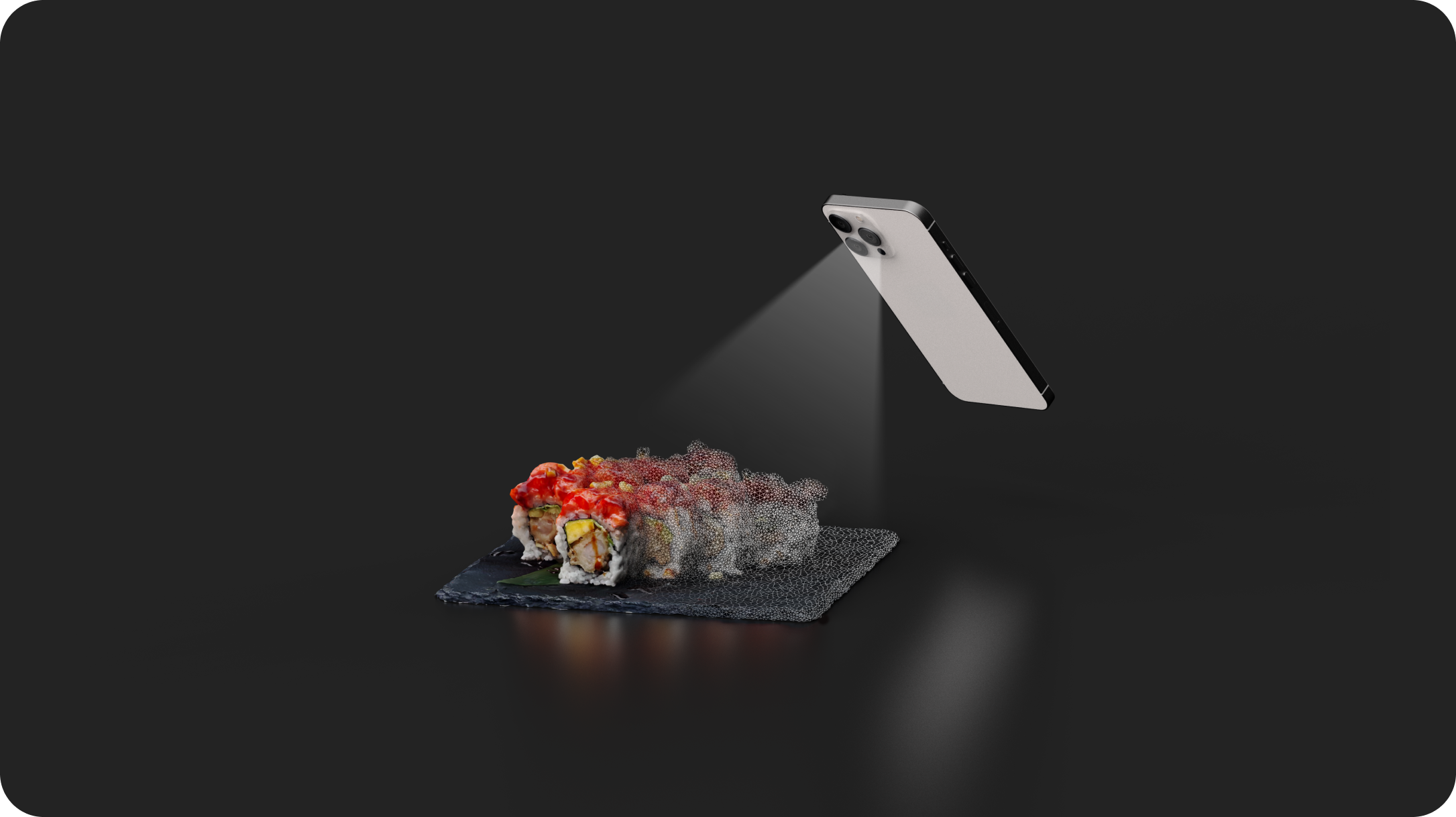
Creating a 3D model of a dish is one of the core actions in Replate. With the **Manager app**, you can scan your dish using your iPhone and generate a faithful digital representation to display on your interactive menu.
This page explains how to prepare for a scan, follow the guided process, and get the best result possible.
### Preparing for a Scan
Before starting, ensure you’ve prepared the following:
* The **Manager app is installed** on your iPhone and you’re logged into the right store
* The **dish is already created** inside the app or has been imported to your menu
* You’re in a **suitable environment** for scanning (see below)
### Scanning Best Practices
Here are the step-by-step scanning guidelines, based on the built-in tutorial:
**1. Choose a well-lit place**
**Proper lighting is essential**. Make sure the dish is illuminated clearly without creating harsh reflections or shadows.
**Tip**: Avoid scanning near windows during daylight, as direct sunlight can cause distortion.
**2. Avoid too strong direct lights**
Strong overhead lights or focused spotlights can wash out textures or create glare. Use **diffused or ambient light** when possible.
**3. Use surface contrast**
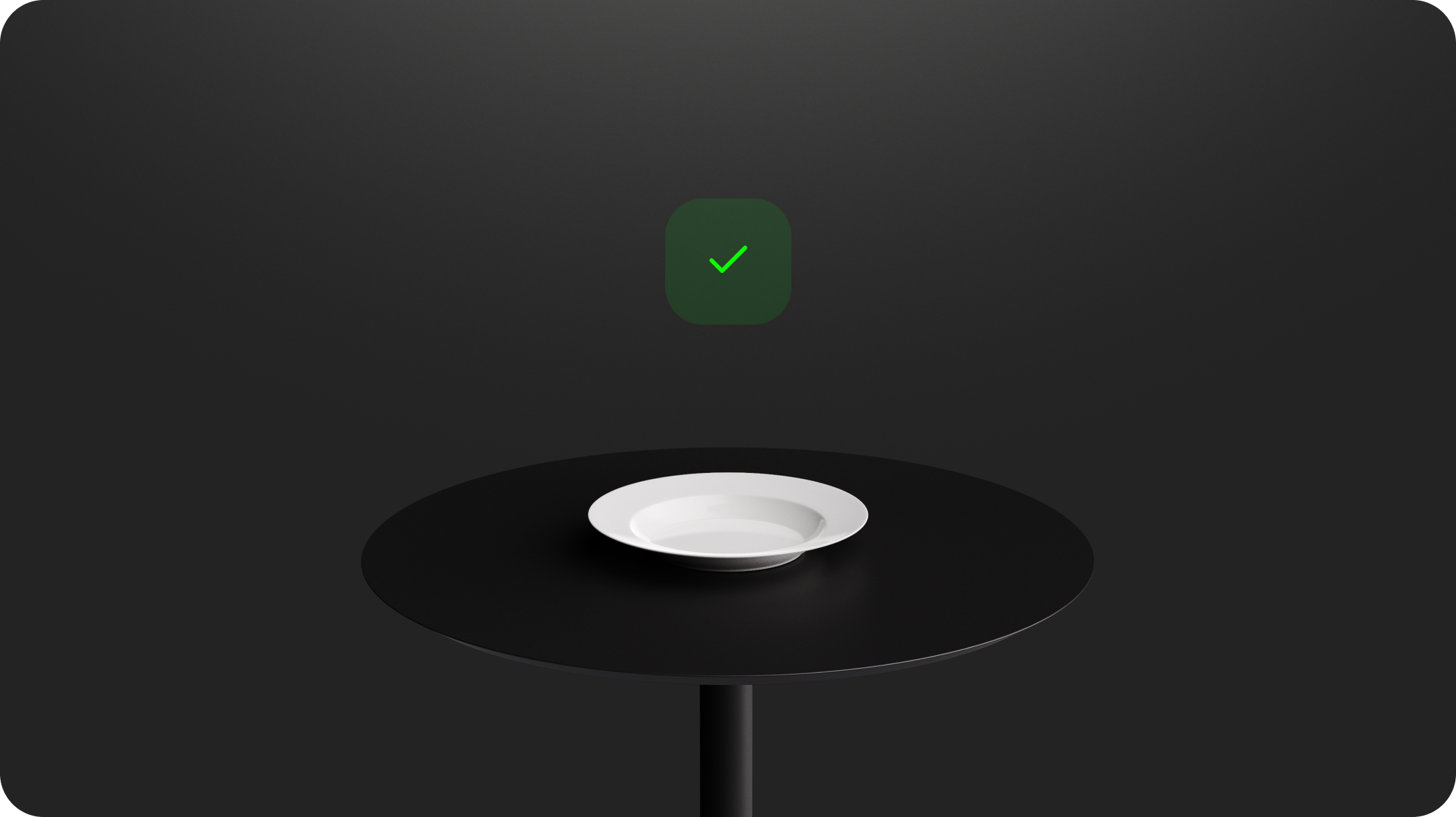
Place your dish on a surface that **contrasts with the plate**. For example, if the plate is white, use a darker or patterned background.
**Why?** Contrast helps the app recognize the edges of the object and separate it from the environment during reconstruction.
**4. Do not move the product**
Once positioned, **do not touch or rotate the plate**. Any movement can compromise the quality and cause reconstruction failures.
**5. Clean the camera**
Before you begin scanning, clean your iPhone’s lenses to avoid blur or smudges. Even small dust spots can affect the detail level.
**6. Maintain necessary space**
You’ll need space to move around the dish freely. Step back a little and check that your movements won’t be obstructed during the scan.
**7. Follow the indicated positions**
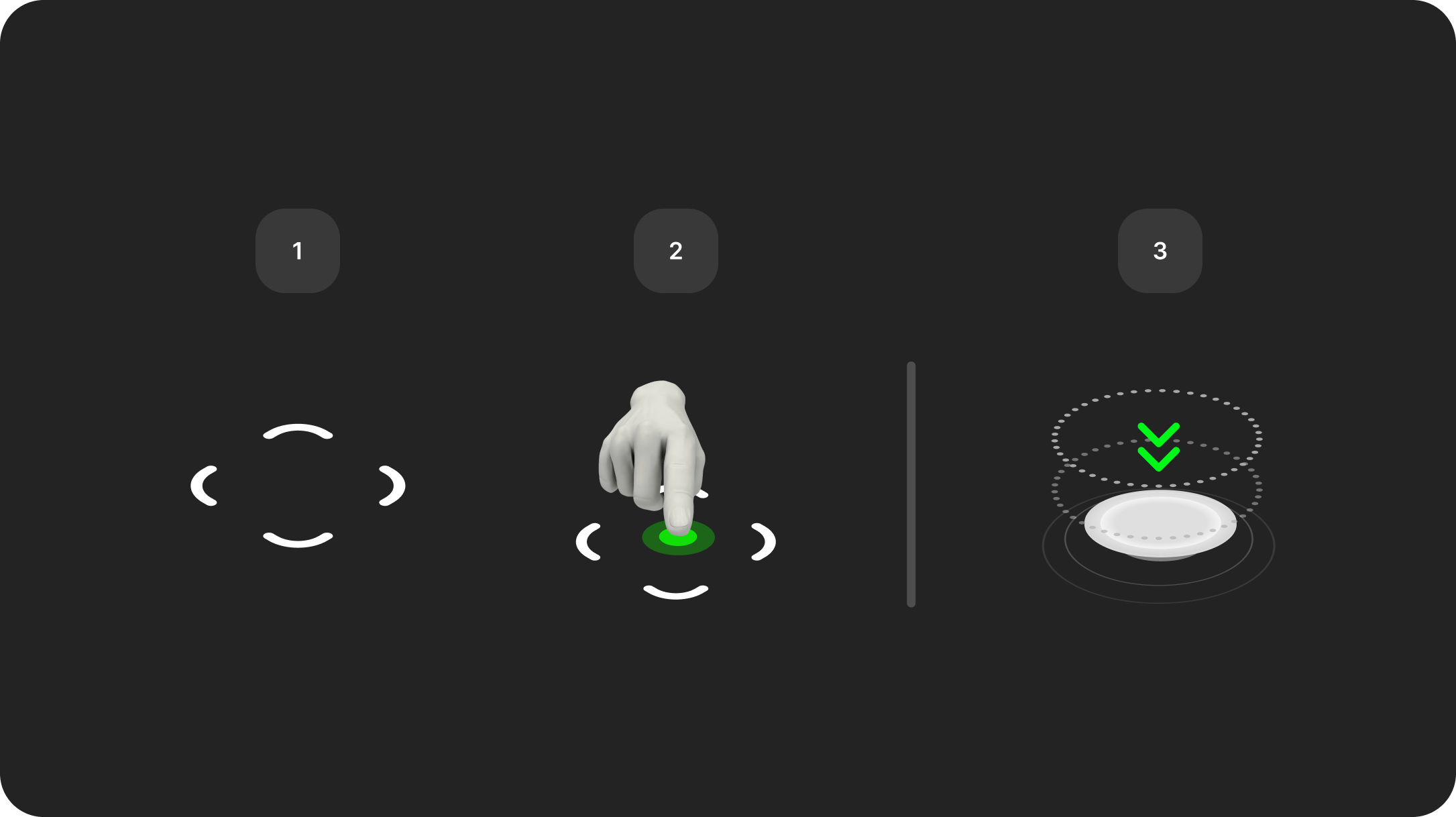
During the scan, Replate will guide you using **virtual spheres** that appear in space.\
Slowly move your phone to align with each sphere. This path ensures a **complete and consistent capture** of the dish from all angles.
**8. Place the guide**
To begin scanning, place your product on a flat, unobstructed surface. Tap within the circular guide to anchor the scanning marker. Once the guide appears, adjust its position and scale to fit the base of your product using pinch and drag gestures. Make sure the product is centered within the guide before continuing.
**Tip**: Move smoothly. Sudden or jerky movements may cause areas to miss data and reduce model quality.
{% hint style="info" %}
**Important:** Each scan consumes credits. Make sure you're happy with the lighting and setup before you start to avoid unnecessary credit usage.
{% endhint %}
### Finishing the Scan
Once all scan points are completed:
* The app will automatically start **processing the model**
* You’ll be notified when the scan is complete and can preview it inside the item page
* You can **scan again** at any time if you're not satisfied with the result
### Common Scan Issues & Fixes
| Problem | Likely Cause | Fix |
| -------------------------------- | ------------------------------------ | ----------------------------------------------- |
| Model appears flat or incomplete | Not enough movement or missed angles | Follow the entire scan path, don’t skip points |
| Texture is blurry | Dirty lens or poor lighting | Clean camera, scan in bright and diffused light |
| Model fails to process | Object was moved | Make sure dish stays completely still |
GitBook supports importing content from many popular writing tools and formats. If your content already exists, you can upload a file or group of files to be imported.
---
# Agent Instructions: Querying This Documentation
If you need additional information that is not directly available in this page, you can query the documentation dynamically by asking a question.
Perform an HTTP GET request on the current page URL with the `ask` query parameter:
```
GET https://replate.gitbook.io/replate-docs/manager/3d-scanning.md?ask=
```
The question should be specific, self-contained, and written in natural language.
The response will contain a direct answer to the question and relevant excerpts and sources from the documentation.
Use this mechanism when the answer is not explicitly present in the current page, you need clarification or additional context, or you want to retrieve related documentation sections.